Showing posts with label computer tips. Show all posts

Convert text image to text

Did you have a text on the paper, like a book, biography, story life or text about science, tutorial, etc, and you want to write again on the computer ?, so you can use the online convert image to text if you don’t have an OCR scanner. With this way you don't need write manually again. The first step is scan your letter with scanner, and it result is image with jpg, png, etc units. Save your image to the folder in hard drive.

Next step is visit this address onlineocr
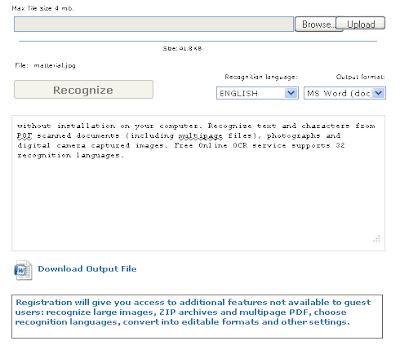
Browse your image file and then upload it (max file size is 4 mb)
online ocr
If this done, choose Recognition language and output format options. So fill enter code that shown and then click Recognize.

convert jpg to text
Now you can download out put file and then you can edit the text.

List of keyboard shortcuts in Windows 7

For some users, the keyboard shortcut is very important for improving productivity. By using the keyboard shortcut user can save time for display applications compared to using a mouse. If you prefer using keyboard shortcuts, here are some keyboard shortcuts in Windows 7:
  • Windows key + UP Arrow : maximize the window
  • Windows key + Down Arrow : Minimize the window
  • Windows key + Left Arrow : The windows to the left
  • Windows key + Right Arrow : the right flat The windows
  • Windows key + Home : minimize all windows
  • Windows key + P : To display the projector's menu
  • Alt + F4 : Closes the currently active window
  • Alt + Tab : move to next window
  • Windows + Tab button : To switch between windows
  • Windows key + T : To move between items on the taskbar
  • Windows key + M : Minimize all windows
  • Windows key + Shift + M : To return the state before the minimized
  • Windows key + D : Show desktop
  • Windows key + Space : All windows appear transparent
  • Windows key + X : Displays the mobility center menu
  • Windows key + (+/-) : zoom in / zoom out (Magnifier)
  • Windows key + U : Open Access Center
  • Windows key + F : Opens the search window
  • Windows key + E : Opens windows explorer
  • Windows key + R : Opens the Run window
  • Windows key + Pause / Break : Opens the System Properties window
  • Ctrl + Shift + Esc : Opens the Windows Task Manager

My Computer Is Running Slow - How To Stop this in just a few minutes and get a fast PC

If your computer starts to flash the blue screen of death, you're registry might have some problems. To deal with this, you need know how to fix this and stop your computer running slow as well.
Over time, your computer will run slower than usual and this is expected. When this happens you only need to look at one problem, registry errors. Having a poor computer can be very disappointing but by fixing your computer registry can solve this problem.
The registry is the database of all information needed by installed programs to run. It is equivalent to a library catalog which contains reference sources of stored data. Every time you install and uninstall a program leaves invalid or incomplete entries in the registry, in turn, your computer will need more time to read files and your computer runs slower.
Since the registry is used every time you run your computer, these entries will soon become disorganized and bloated. Aside from the entries left by legitimate programs, spyware also contribute to incomplete and corrupt entries, undesirable entries and error filled files in your registry. Frequent malware attacks can even worsen this problem by causing sudden crashes and eventually corrupting your computer's registry.
If left, registry problems can cause you big trouble. Usually it will need to be repaired by professional service providers which is very costly or it can cause file loss and deletion, something you do not want to happen. To prevent these bigger problems, you simply need to install a registry cleaner and run it regularly to maintain the optimum state of your computer registry and windows to stop your computer running slow.
Some people would perform manual editing of computer registry. Although you are free to perform manual registry cleanup, one false click can cause your computer to crash or your programs will not function properly. If you really want to try fixing through this method, just be sure to make remote file backup so that you will not regret in the end.
The easiest and most reliable way of fixing your registry is through a system and registry scanner. Simply install and run the program then it will immediately scan for windows and registry errors. These programs have very simple and friendly interface so you need not worry about what you will do next. If you find your computer running slow scan it now and make it run fast again.
Article Source: here
About the Author

Here is the #1 solution for a computer running slow just click here now.

 
Powered by Blogger | Printable Coupons